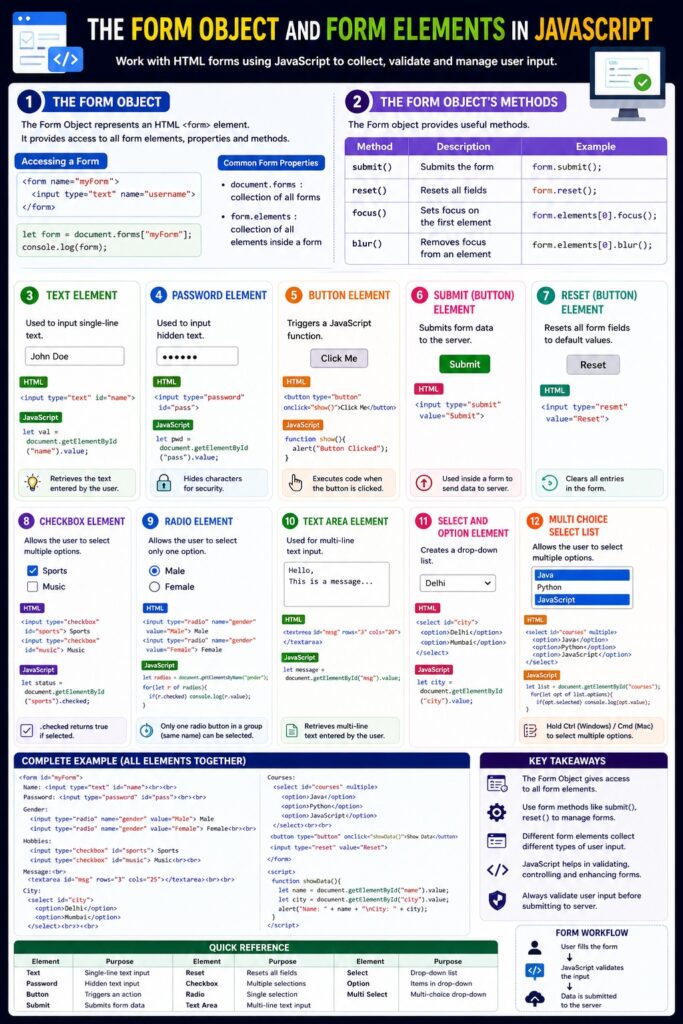
Here is a detailed, MCA-level explanation (website-ready) of
🌐 The Form Object in JavaScript
and its Elements & Methods (with examples)
🧠 1. The Form Object
In JavaScript, a Form Object represents an HTML <form> and provides access to its elements, properties, and methods.
👉 It is part of the Document Object Model (DOM).
🔹 Accessing a Form
<form name="myForm">
  <input type="text" name="username">
</form>

<script>
  let form = document.forms["myForm"];
  console.log(form);
</script>
📌 Key Properties:
document.forms→ collection of all formsform.elements→ access all elements inside form
⚙️ 2. Form Object Methods
| Method | Description |
|---|---|
submit() | Submits the form |
reset() | Resets all fields |
focus() | Focus on input field |
blur() | Removes focus |
🧩 3. Form Elements with Examples
✍️ (1) Text Element
Used to input single-line text.
<input type="text" id="name">

<script>
  let val = document.getElementById("name").value;
  console.log(val);
</script>
🔒 (2) Password Element
Used to input hidden text (password).
<input type="password" id="pass">

<script>
  let pwd = document.getElementById("pass").value;
</script>
🔘 (3) Button Element
Triggers JavaScript functions.
<button onclick="show()">Click</button>

<script>
function show() {
  alert("Button Clicked");
}
</script>
📤 (4) Submit Button
Submits form data to server.
<form onsubmit="return validate()">
  <input type="text" id="user">
  <input type="submit" value="Submit">
</form>

<script>
function validate() {
  let u = document.getElementById("user").value;
  if(u === "") {
    alert("Enter name");
    return false;
  }
}
</script>
🔄 (5) Reset Button
Resets all form fields.
<form>
  <input type="text" id="name">
  <input type="reset" value="Reset">
</form>
☑️ (6) Checkbox Element
Allows multiple selections.
<input type="checkbox" id="chk"> Accept Terms

<script>
  let status = document.getElementById("chk").checked;
</script>
🔘 (7) Radio Element
Allows single selection from a group.
<input type="radio" name="gender" value="male"> Male
<input type="radio" name="gender" value="female"> Female
let radios = document.getElementsByName("gender");
for(let r of radios) {
  if(r.checked) {
    console.log(r.value);
  }
}
📝 (8) TextArea Element
Used for multi-line input.
<textarea id="msg"></textarea>

<script>
  let message = document.getElementById("msg").value;
</script>
📋 (9) Select and Option Element
Used to create dropdown lists.
<select id="city">
  <option value="Delhi">Delhi</option>
  <option value="Mumbai">Mumbai</option>
</select>

<script>
  let city = document.getElementById("city").value;
</script>
🔢 (10) Multi-Choice Select List
Allows multiple selections.
<select id="courses" multiple>
  <option value="Java">Java</option>
  <option value="Python">Python</option>
  <option value="JS">JavaScript</option>
</select>
let list = document.getElementById("courses");
for(let opt of list.options) {
  if(opt.selected) {
    console.log(opt.value);
  }
}
🔄 Complete Example (All Elements Together)
<form id="myForm">

  Name: <input type="text" id="name"><br><br>

  Password: <input type="password" id="pass"><br><br>

  Gender:
  <input type="radio" name="gender" value="Male"> Male
  <input type="radio" name="gender" value="Female"> Female<br><br>

  Hobbies:
  <input type="checkbox" id="sports"> Sports
  <input type="checkbox" id="music"> Music<br><br>

  Message:<br>
  <textarea id="msg"></textarea><br><br>

  City:
  <select id="city">
    <option>Delhi</option>
    <option>Mumbai</option>
  </select><br><br>

  Courses:
  <select id="courses" multiple>
    <option>Java</option>
    <option>Python</option>
    <option>JS</option>
  </select><br><br>

  <button type="button" onclick="getData()">Show Data</button>
  <input type="reset">

</form>

<script>
function getData() {
  let name = document.getElementById("name").value;
  let city = document.getElementById("city").value;
  alert(name + " - " + city);
}
</script>
🔄 Summary Table
| Element | Purpose |
|---|---|
| Text | Single-line input |
| Password | Hidden input |
| Button | Trigger action |
| Submit | Send form |
| Reset | Clear form |
| Checkbox | Multiple choice |
| Radio | Single choice |
| TextArea | Multi-line input |
| Select | Dropdown |
| Multi Select | Multiple dropdown choices |
🎯 Conclusion
The Form Object and its elements are essential for:
- Collecting user input
- Validating data
- Building interactive web applications
👉 Mastering forms is crucial for real-world web development and MCA exams.